Welcome to Split Infinity Radio’s new, fancy website! There are a lot of features, so let us start showing you around. To keep this from becoming overwhelming, we’ll break the tour into a few different articles, spread over the next few days/weeks. Let’s start at the top.

You may notice our brand new logo (isn’t it lovely?). Under our station name and slogan you will see the website version you are viewing. If at any point people start talking about a new feature, and you don’t see it, you’ll want to make sure you are looking at the latest version.
Moving on to the tabs. For the most part, tabs are pretty self explanatory, based on their titles alone, so we won’t spend too much time describing them to you now.
On the right-hand side, see that coin looking thing with a number next to it? That is your wallet, displaying how many wasabits you have. You read that right, WASABITS!! I know, we’re excited about those, too. You’re probably asking, “Can I actually do anything with my wasabits?” YES!!! Wasabits are now a working currency here at Split Infinity Radio. (More on wasabit uses later)
Next to your wallet is your profile pic, which also acts as a menu. Click on your profile pic to bring up the menu.
Let’s click on “My profile”.
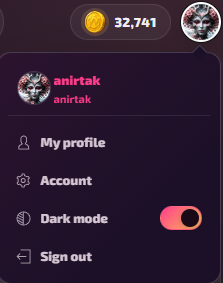
On this page, you can change your display name. The first change is free. Subsequent changes will cost you ₩10,000.
Your profile is also home to your very own habitat! You can literally decorate your own little corner of the internet. (This feature will be discussed in greater detail in a future article).
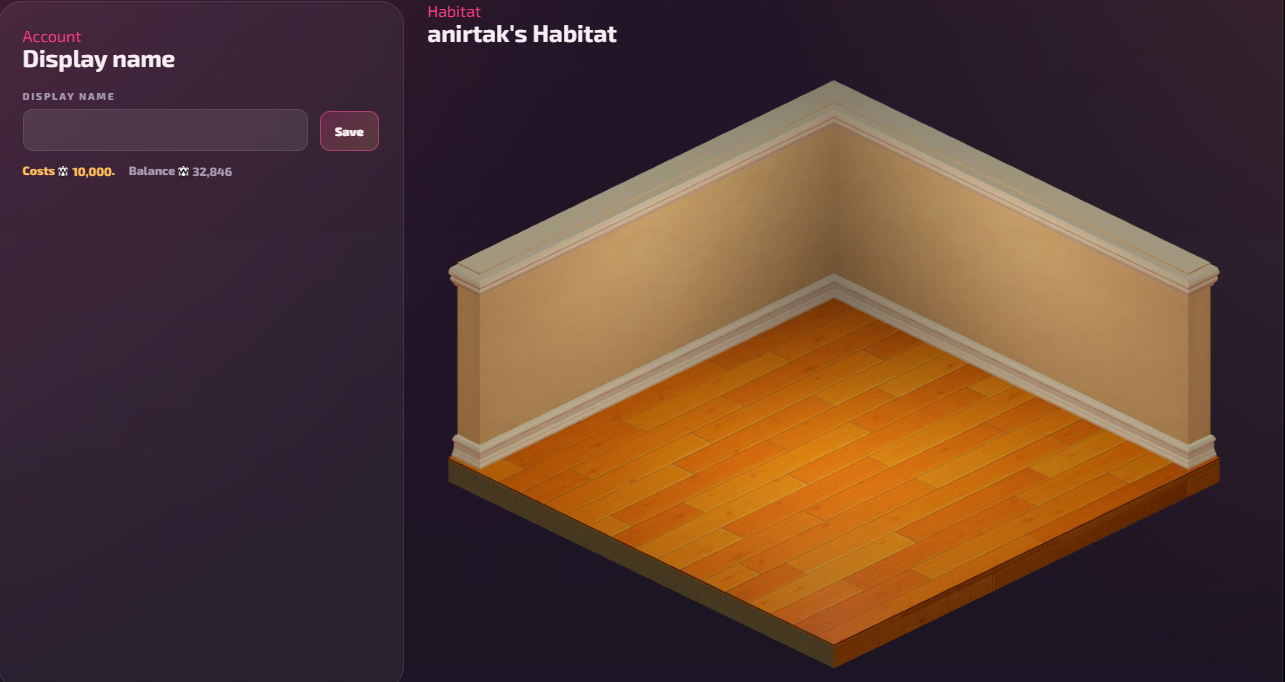
Next, you get to alter your “Team allegiance”, or “Opt out” of picking sides (You'll be asked to choose a team upon signing up with our site the first time). For those choosing a team, we know that you choose your allegiance based on different criteria, so let’s list your options:
| Team | Species | Team Color | Music Preference |
|---|---|---|---|
| Wasabi | Turtle | Green | All genres |
| Piper | Dog (Husky) | Red | Rock, Metal, Goth |
| Edgar | Donkey | Brown | Electronica |
| Slippy | Frog | Blue | AK-pop, Kawaii, Mashup |
| Pawla | Cat | Purple | Jazz, Soundtracks |
You can change your team allegiance at any time, or opt back into teams, as long as you can pay the ₩5,000 fee, and there is room on the team you want to go to. (Teams will be described in more detail in a later news article).
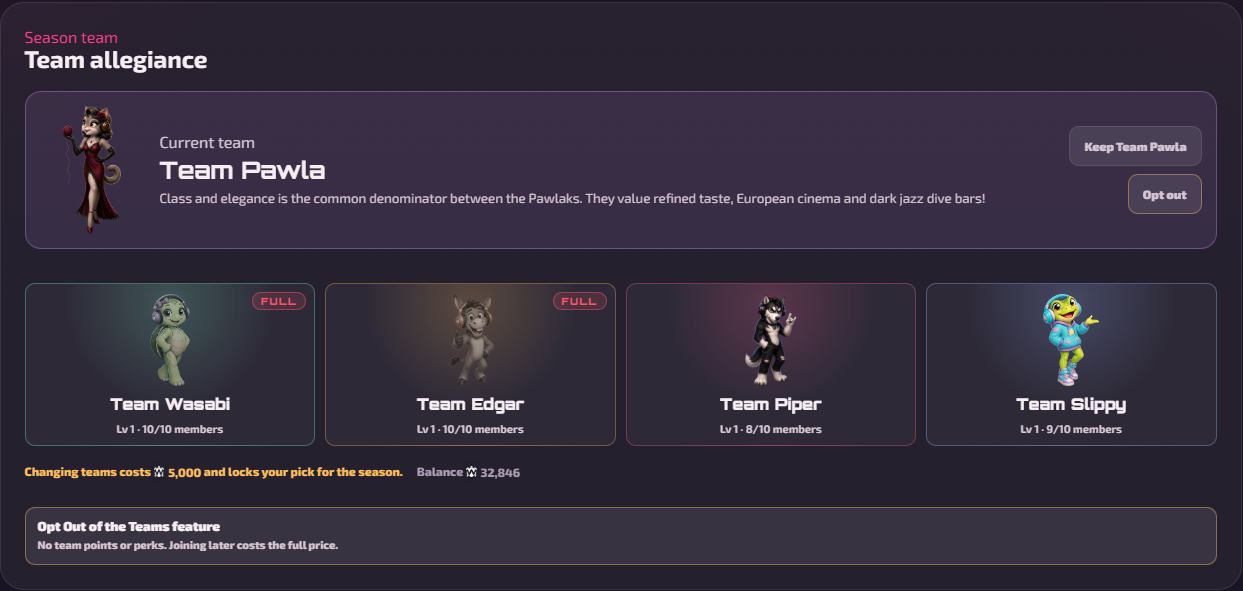
Next is your list of “Favorite tracks”. You can list up to 20 tracks (I know, it will be hard to pick just 20). As new tracks become your favorite, or your tastes change, you can “Remove” a track from the list to make room for a new one. You can also use the ↑ or ↓ arrows to arrange your list from most favorite to least.
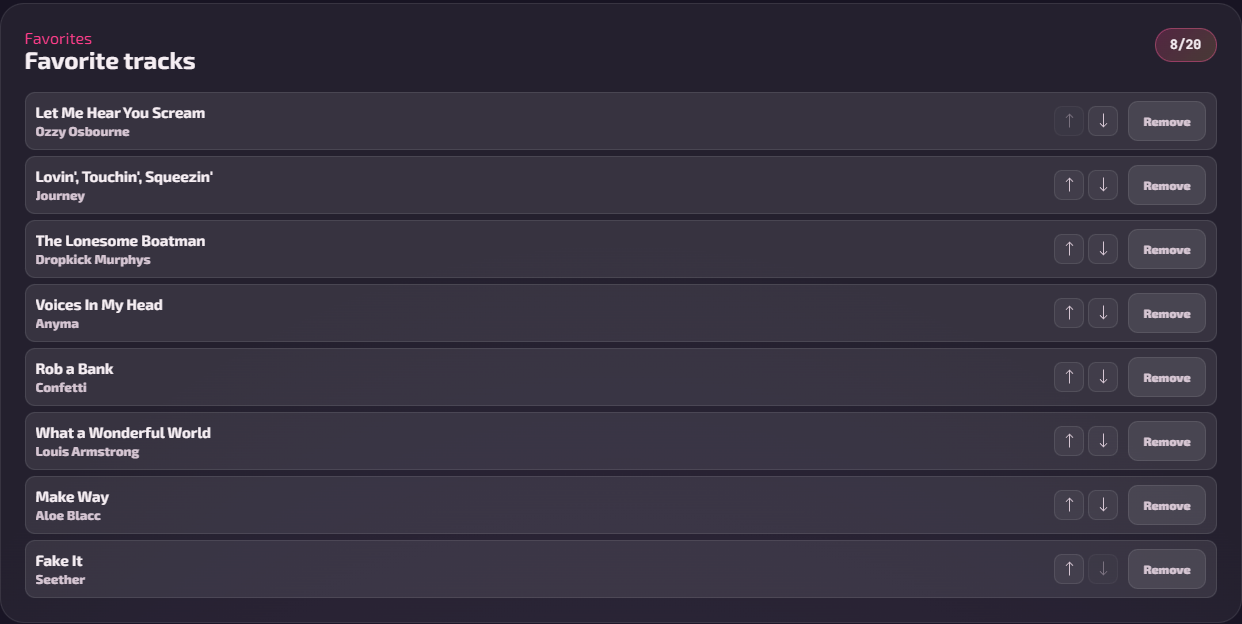
Finishing out the My Profile page, we see the “Request history” and “Vote history” lists. These list your last 10 actions in each category.
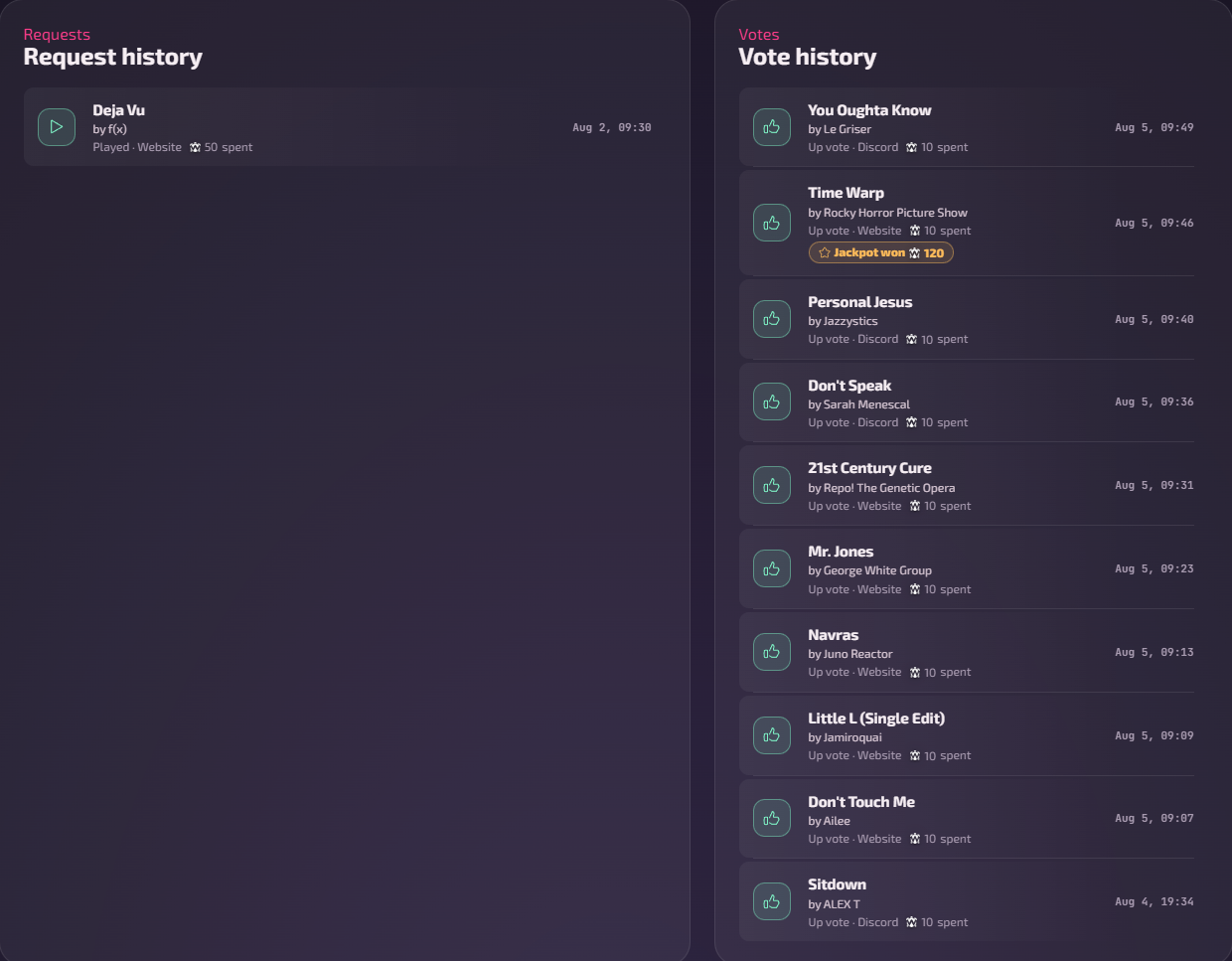
Click on a song title to open the song’s radial menu.
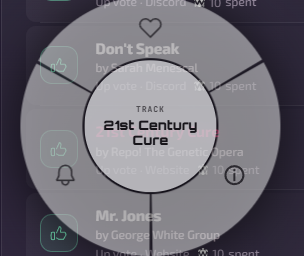 From here you can add the song to your favorites list (click the heart to do this).
You can help us filter out problem tracks on the stream by reporting them, too (click on the bell). This option will have another radial menu pop up so you can tell us what the issue is with that particular track.
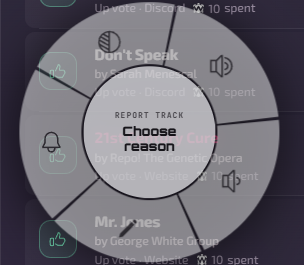 The options are: bad audio quality (bell), distorted audio (circle cut in half with lines), volume too loud (speaker with two curved lines), volume too low (speaker with one curved line), or wrong/title artist reported (pencil).
Back to the original radial menu, the final option is the info button (lowercase “i” in a circle). This option will open, you guessed it, a page with specific details and information about that song. Let’s take a look at the info for 21st Century Cure.
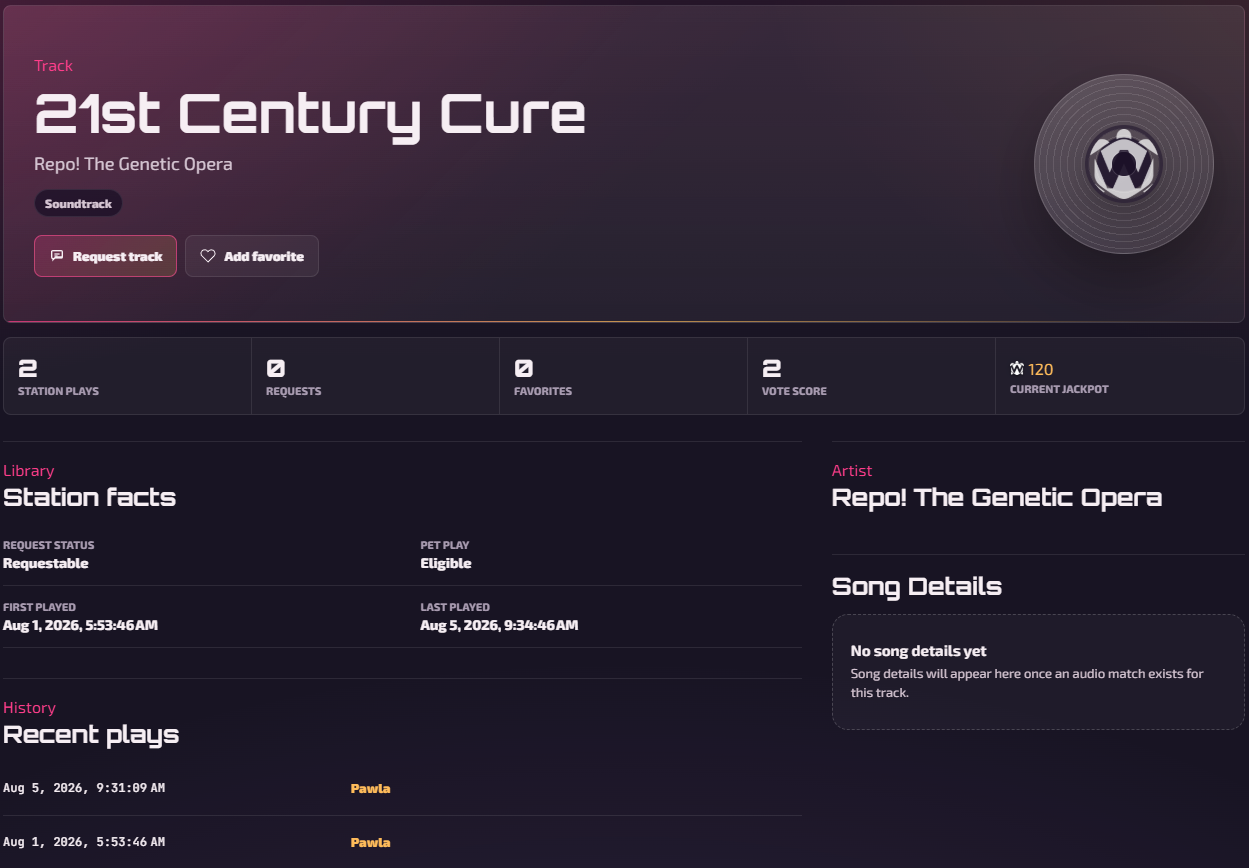 While on the info page of any song, you can request the song (as long as it is a requestable track), and also add to your favorites. If you want to see more about the DJ who recently played the track, you can click on their name under “Recent plays”.
Now, you might be thinking this article is getting pretty long, and we agree. However, let us quickly finish the rest of the items hiding under your profile picture. Click your profile pic again, this time choosing “Account”.
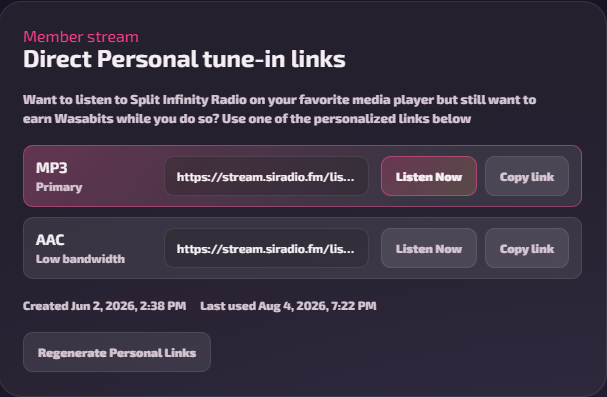
Since you earn wasabits for being tuned in, the “Direct Personal tune-in links” are very important. If you’re going to be listening, you might as well get the credit you deserve, right? If you need/prefer to listen to the stream outside of the website, say through an external media player/app, you can either click “Listen Now”, which will download a playlist file to your device, or you can simply click “Copy link” and enter into your player of choice. If you choose the “Listen Now” option, you’ll need to open the downloaded file and tell it which app you use.
The last section on your Account page is for “Linked accounts”. Linked accounts make it easier for you to login to the website. We certainly recommend linking your Discord account, as this will allow for you to earn wasabits while listening through our Live channel. Additionally, to vote for songs, participate in game shows, or make requests in Discord, your account will need to be linked (these features will not work otherwise).
Phew….almost done, we promise!!
The third option hiding under your profile pic is the “Dark/Light mode” option.
 While we fully believe dark mode is superior, if you are one of the weird ones that like light mode, you have that option. The writer of this article is afraid to go toward the light, so if you want to see light mode, you’re going to have to click that yourself. ;)
FINALLY, your last option is the “Sign out” option. We don’t know why you would ever want to do that, but you can, if you want to. But, don’t.
That’s it, you’ve reached the end of this article. Keep checking back for more articles.